Icons With Labels
I spent three hours last Tuesday staring at a client’s site, trying to figure out why their “modern” UI felt like a cluttered junk drawer. The culprit? A collection of icons that looked like they were scavenged from five different freebies, all fighting for dominance in a way that made my eyes ache. Most tutorials on how to design icons will tell you to grab a fancy vector tool and start playing with Bezier curves, but they completely ignore the logic behind the shape. They treat icons like pretty little decorations rather than the functional, structural decisions they actually are.
I’m not here to give you a lecture on software shortcuts or which expensive plugin will make your site look “premium.” Instead, I’m going to show you how to build a visual language that actually works within the constraints of a real project. We’re going to skip the fluff and focus on the systematic approach—from grid consistency to weight matching—so you can stop guessing and start making decisions that don’t break your layout.
Table of Contents
Mastering Visual Metaphors in Icons Before Drawing
Before you even touch a Bézier curve, you need to figure out what you’re actually trying to say. Most people jump straight into the software, but if you haven’t nailed down the visual metaphors in icons first, you’re just drawing pretty shapes that mean absolutely nothing. I’ve seen so many projects stall because the designer spent three hours perfecting a “save” icon that looked more like a floppy disk from 1995 than a modern cloud upload. You have to decide: are you being literal, or are you being conceptual? If you’re building a complex dashboard, a literal approach usually wins. If you’re designing for a lifestyle brand, you can afford to be a bit more abstract.
The real trap is ignoring how these symbols live within a larger system. You aren’t just creating a single image; you’re contributing to a specific iconography design workflow that needs to feel cohesive. If your “settings” icon is a hyper-detailed gear and your “user” icon is a minimalist silhouette, the whole interface starts to feel like a junk drawer of mismatched themes. I treat every icon like a piece of a larger typeface—it has to follow the same rules of weight, rhythm, and personality, or the user is going to feel that friction, even if they can’t quite put their finger on why.
Reading the Existing User Interface Iconography
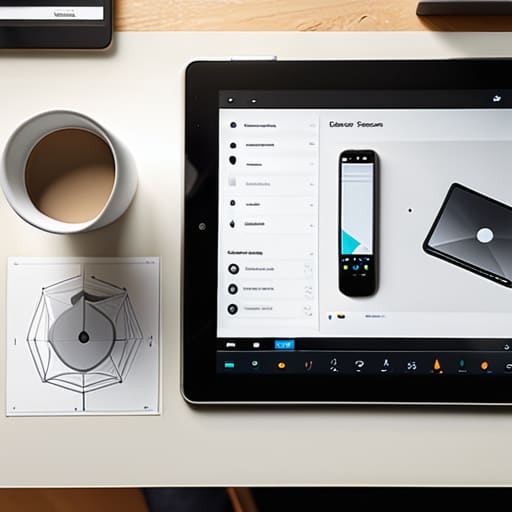
Before you even touch a stylus, you need to perform an autopsy on the existing interface. I’ve spent enough hours un-building messy client sites to know that nothing is more jarring than a beautifully designed icon that looks like it belongs to a different universe. You aren’t working in a vacuum; you are stepping into a conversation that’s already happening. Look at the stroke weights, the corner radii, and the level of abstraction in the current user interface iconography. If the existing set uses heavy, rounded lines, and you swoop in with a razor-thin, geometric set, you haven’t “improved” the design—you’ve broken it.
I treat this like reading a style guide that someone forgot to write down. You have to hunt for the patterns. Are the icons filled or outlined? Do they use soft edges or sharp, aggressive terminals? This isn’t just about aesthetics; it’s about maintaining a cohesive iconography design workflow that doesn’t force the user to pause and wonder why the “Settings” cog suddenly looks like it was drawn by a different person. If you can’t match the existing visual logic, you’re just adding more bloat to an already cluttered mental model. Stop trying to be a hero and start being a consistent contributor.
Stop guessing and start auditing: 5 ways to avoid icon anarchy
- Check your stroke weights. If the UI is using a 1.5px line and you drop a chunky 3px icon into the mix, you haven’t designed an icon; you’ve designed a distraction.
- Respect the bounding box. I’ve inherited enough messy layouts to know that an icon that looks “centered” to your eye but ignores the established grid is just a broken pixel waiting to happen.
- Match the corner radius. If the buttons on the site are soft and rounded, don’t give me sharp, aggressive geometric icons. It’s a visual mismatch that screams amateur.
- Test for scale before you commit. An icon might look great at 512px on your retina display, but if it turns into a blurry blob at 16px in a navigation menu, it’s useless.
- Stick to the established metaphor library. If the site uses filled icons for active states, don’t suddenly switch to outlines. Consistency isn’t about being boring; it’s about not making the user think.
Stop Drawing, Start Deciphering
At the end of the day, designing icons isn’t about how much flair you can cram into a single SVG file. It’s about respect—respect for the visual language that already exists within your UI. If you’ve done the work, you’ve already mastered the metaphors and decoded the existing iconography to ensure your new additions don’t look like they were dragged in from a different universe. You aren’t just making pretty little shapes; you are integrating a new set of decisions into a system that is already speaking. If you skip the research and jump straight to the canvas, you’re just adding to the visual noise that makes sites feel heavy and unpolished.
My advice? Put the stylus down for a second and actually look at what’s already on the screen. The best designers I know don’t try to outshine the existing interface; they try to become part of its DNA. When you stop treating icon design as an isolated art project and start treating it as a logical extension of the design system, everything clicks. Don’t aim to be the loudest thing on the page—aim to be the most seamlessly understood. Once you stop fighting the existing framework and start reading it, you’ll stop building clutter and start building clarity.