
A Comparison Table on a Phone
I spent three hours last Tuesday digging through a client’s “custom” site, only to find they’d bloated their entire homepage with a massive, heavy-duty page builder just to display a simple pricing grid. It’s the same old story: someone thinks they need a complex, multi-layered plugin to handle a few rows of data, when really they just need to understand how to design a comparison table that doesn’t tank their load speeds. Most people treat these layouts like they’re building a spaceship, adding unnecessary shadows, animations, and nested divs that serve no purpose other than to make the CSS a nightmare to maintain.
I’m not here to sell you on a premium subscription or a “drag-and-drop” miracle that breaks the moment you update WordPress. Instead, I’m going to show you how to look at the logic behind a great grid so you can build one that actually works. We’re going to focus on clean hierarchy, readable typography, and making sure your data is the star of the show, not the flashy, overdesigned junk that usually clutters up my inherited folders.
Table of Contents
Decoding Comparison Table Ui Patterns
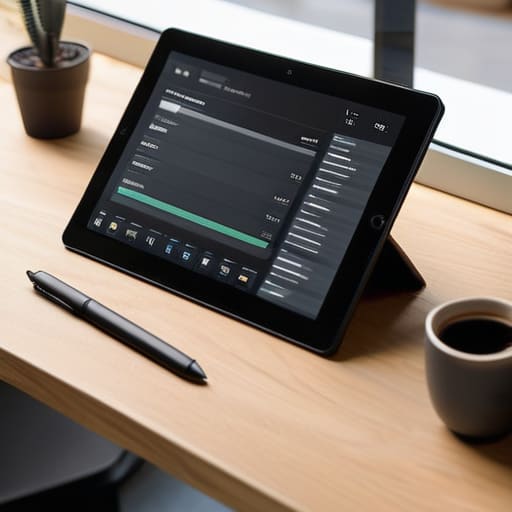
When you start looking at existing comparison table UI patterns, stop looking at the colors and start looking at the logic. Most people get distracted by a pretty gradient, but I’m looking at how the designer handled the information architecture. A good table isn’t just a grid; it’s a roadmap. You need to establish a clear visual hierarchy in comparison charts so the user’s eye knows exactly where to land. If every cell is screaming for attention with high-contrast borders and loud icons, you haven’t designed a tool—you’ve designed a headache.
I’ve inherited enough bloated sites to know that “more features” usually just means “more clutter.” The goal is improving table readability by stripping away the non-essentials. Use subtle row striping or hover states to guide the eye across the horizontal plane, rather than relying on heavy, soul-crushing lines. And for the love of clean code, please consider mobile-friendly table layouts from the jump. If your table turns into a horizontal scrolling nightmare on an iPhone, you’ve failed the most basic test of user experience. Don’t just dump data into a container; make sure the layout actually respects the way people consume information.
Mastering Visual Hierarchy in Comparison Charts
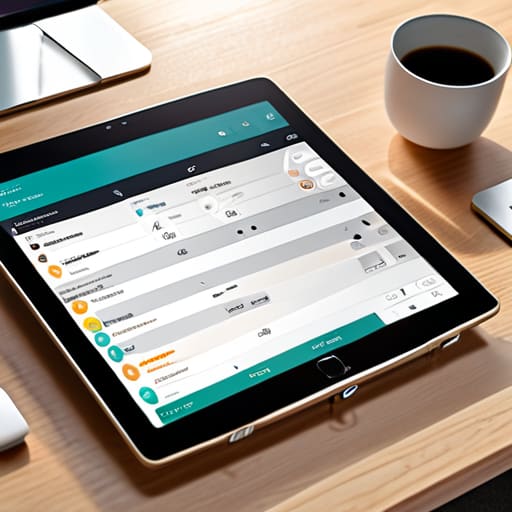
If you treat every row and column with the same level of importance, you aren’t designing a table; you’re designing a spreadsheet nightmare. Most people make the mistake of thinking a comparison chart is just a grid of data, but it’s actually a psychological roadmap. You need to use visual hierarchy in comparison charts to tell the user exactly where to look first. If you have a “Pro” plan that you actually want people to buy, that column shouldn’t just sit there looking polite. It needs a subtle lift—maybe a different background shade or a slightly larger scale—to signal that it’s the intended destination.
Don’t let the data drown in a sea of identical borders. I’ve inherited enough bloated, cluttered sites to know that heavy lines are the enemy of improving table readability. Instead, use white space and typographic weight to create distinction. Use bold headers for your feature names and light, muted text for the secondary details. When you’re thinking about user experience for data tables, remember that the eye is lazy. If you make it work too hard to find the “Yes” or “No” in a sea of gray text, they’ll just bounce. Guide them through the decisions, one clear row at a time.
Stop Treating Your Table Like a Spreadsheet
- Kill the clutter. If you’re copying every single row from a technical spec sheet, you’re not designing a table; you’re building a wall of text. Pick the five features that actually drive a purchase decision and leave the rest for the PDF download.
- Use visual shorthand, not just words. I’ve inherited so many sites where the “features” column is a repetitive sea of “Yes” and “No.” It’s exhausting to read. Use checkmarks, crosses, or even subtle color scales. Let the user’s eyes glide, don’t make them read a novel just to find a feature.
- Highlight the “Winner” without being obnoxious. Every comparison table has a “recommended” option, usually the one with the best margin. Instead of screaming with neon colors, use a subtle border or a slightly elevated shadow to make that column feel like the logical choice.
- Mind the mobile collapse. This is where most developers fail. A wide comparison table on a desktop is fine, but on a phone, it becomes a horizontal scrolling nightmare that kills UX. Design for a vertical stack or a “sticky” first column so users don’t lose their place.
- Watch your typography scales. In my typeface collecting, I see how easily a heavy weight can crush a layout. If your headers are too loud or your feature names are too cramped, the whole table loses its authority. Give your text room to breathe, or nobody is going to trust the data you’re presenting.
Stop Making Users Work for the Answer

At the end of the day, a comparison table isn’t a place to show off how many features you have; it’s a tool to help someone make a choice. If you’ve followed what we discussed, you aren’t just throwing data into a grid and hoping for the best. You’ve decoded the UI patterns, respected the visual hierarchy, and—most importantly—you’ve ensured that the most important information isn’t buried under a mountain of unnecessary borders and distracting colors. Remember, if a user has to squint or hunt through a messy layout to find the difference between Plan A and Plan B, you haven’t designed a table; you’ve designed a cognitive tax.
Don’t get caught up in the trap of over-engineering your layout just because a fancy page builder says you can. Most of the time, the cleanest solution is the one that respects the user’s time and attention. Build your grid with intention, stick to the logic of the decisions you’ve made, and trust the structure. A well-designed table should feel inevitable, like the right answer was always sitting there waiting to be seen. Now, go clean up that layout and stop making your visitors do your job for you.