
Checking Contrast Before Shipping
I spent three hours last Tuesday squinting at a client’s “minimalist” landing page, only to realize their designer thought light grey text on a white background was a vibe. It wasn’t a vibe; it was a usability nightmare. Most people treat accessibility like a checkbox at the end of a project, or worse, they think they need some bloated, expensive enterprise auditing suite to get it right. They don’t. Learning how to check colour contrast shouldn’t feel like performing surgery; it should be a fundamental part of your workflow, not a desperate scramble to fix a broken site before launch.
I’m not here to give you a lecture on WCAG theory or sell you on a subscription service. I’ve spent nine years un-building the mess left behind by people who prioritize aesthetics over actual humans, and I’ve learned that the best tools are usually the simplest ones. I’m going to show you exactly how I vet these decisions myself, using the same no-nonsense methods I use to ensure a site actually works. We’re going to skip the fluff and focus on the practical ways to verify your palette so you don’t end up with a folder of “unbuildable” disasters like I do.
Table of Contents
Reading the Foreground and Background Contrast Decisions

When I open a new site, the first thing I do isn’t looking at the layout—it’s looking at the relationship between the text and the space behind it. Most developers treat foreground and background contrast like an afterthought, something to be “fixed” during a final audit. But if the foundation is muddy, you’re just painting over cracks. I don’t just eyeball it; I look at how the designer decided to layer their elements. If they’ve paired a light grey sans-serif on a white background, they haven’t just made a stylistic choice; they’ve made a functional mistake that ignores basic designing for visual impairment.
To get real, you can’t rely on your eyes, especially after eight hours of staring at a monitor. I keep a colour contrast ratio calculator bookmarked in my browser for a reason. I run the hex codes through it to see if they actually meet the necessary thresholds for readability. It’s not just about the text, either. I’m constantly checking the contrast ratio for text and UI elements like button borders or input fields. If the buttons don’t pop against the container, the user is going to feel lost, and that’s usually a sign that the theme’s default settings were never meant to be used in a real-world production environment.
Decoding the Math Behind the Colour Contrast Ratio Calculator
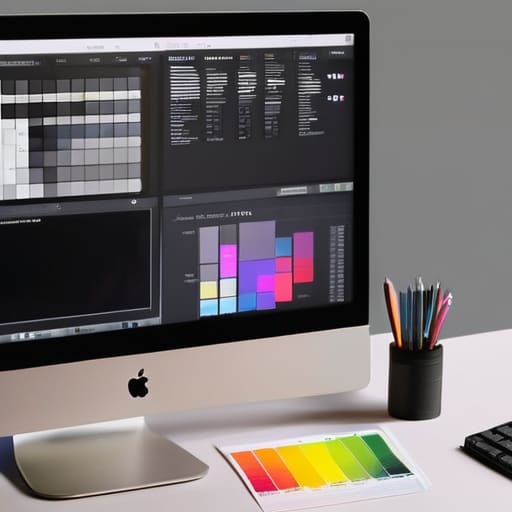
Look, I’m not here to turn you into a mathematician, but if you’re going to use a colour contrast ratio calculator without understanding what it’s actually doing, you’re just guessing with extra steps. These tools aren’t magic; they are calculating the relative luminance of your foreground and background colors. It’s essentially measuring how much light is being reflected by one color compared to another. When I’m auditing a site, I’m looking for that specific mathematical gap that ensures the text doesn’t just bleed into the background.
The math is dictated by WCAG 2.1 compliance standards, which set the bar for what constitutes “readable.” You’ll see numbers like 4.5:1 or 7:1 thrown around constantly. For me, these aren’t just arbitrary hurdles; they are the guardrails that prevent a design from becoming a total disaster for users with low vision. If your ratio is too low, you aren’t just making a “stylistic choice”—you’re effectively making your content invisible to anyone who isn’t looking at a high-end, perfectly calibrated monitor in a dark room. I’ve seen too many “minimalist” designs fail this test because someone thought a light grey on white looked sophisticated. It doesn’t. It just looks broken.
Stop guessing and start testing: My rules for contrast
- Don’t just trust your eyes; your monitor is probably lying to you. I’ve seen plenty of “subtle” grey-on-white designs that look fine in a bright studio but are completely illegible on a laptop in a coffee shop. Use a tool to get the actual math.
- Test your states, not just your static designs. A button might pass the contrast check in its default state, but if the hover or active state washes out the text, you’ve just built a frustrating user experience.
- Check your text against imagery, not just solid hex codes. I’ve inherited so many sites where a beautiful hero image makes the white headline vanish the second a user scrolls. If you aren’t using an overlay, you aren’t checking contrast.
- Remember that “decorative” doesn’t mean “ignore it.” Even if you think a piece of text is just for flair, if a screen reader is going to encounter it, it needs to be readable. Don’t hide bad design decisions behind the “it’s just aesthetic” excuse.
- Scale matters as much as the ratio. A low contrast ratio might pass for massive, bold headings, but it’ll fail miserably for the tiny body copy in your footer. Check your smallest font sizes first; that’s where the real failures live.
Stop Guessing and Start Deciding

At the end of the day, checking color contrast isn’t some abstract academic exercise; it’s about auditing the choices you’ve made for your users. Whether you are digging into the math of a contrast ratio or just squinting at a foreground element against a background, you are essentially verifying that your design decisions don’t actively lock people out. I’ve seen too many “beautiful” sites that are functionally invisible to anyone with even a minor visual impairment. Once you understand how to read those ratios and interpret the math, you stop guessing if a palette works and start knowing that it actually does.
Don’t let a flashy, high-contrast aesthetic trick you into ignoring the actual usability of your site. A design that looks great in a high-res mockup but fails a basic accessibility check is just a well-packaged mistake. My advice? Treat contrast as a non-negotiable foundation rather than an afterthought you fix right before launch. When you get this right, you aren’t just following a checklist to satisfy a client or a plugin; you are building a site that actually works for the people using it. Build with intention, or don’t bother building at all.