A Print Stylesheet Worth Writing
I was elbow-deep in a client’s legacy site last Tuesday—one of those “Frankenstein” builds I keep in my horror story folder—when I realized their print stylesheet was basically a suicide note for their branding. Everything from the navigation menu to the footer was trying to scream its way onto the physical page, turning a simple PDF export into a total layout disaster. Most developers treat print like an afterthought, a little something you sprinkle on at the end, but if you don’t actually know how to handle print styles from the jump, you’re just building a digital mess that refuses to behave once it hits paper.
I’m not here to give you a lecture on theoretical CSS or some bloated plugin that promises to “fix” everything with one click. I’ve spent nine years un-building the mistakes of people who thought they could ignore the fundamentals, and I’m done watching good designs get butchered by bad print logic. I’m going to show you exactly how I audit the decisions already baked into a theme so you can take back control of your output. No hype, no fluff—just the practical ways to make sure your site looks as intentional on a sheet of paper as it does on a Retina display.
Table of Contents
Audit the Decisions Already Made for You
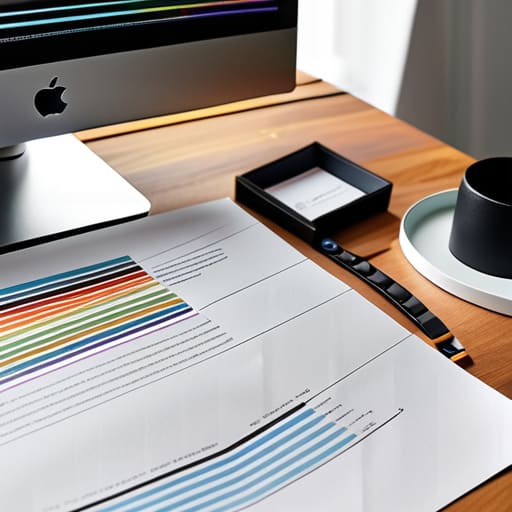
Before you even touch a line of code, you need to realize that your theme has already decided how your site looks on paper. Most developers treat print styles like an afterthought—something you tack on at the very end—but that’s a mistake. I’ve inherited more than a few “Frankenstein” sites where the print layout is a chaotic mess of sidebar widgets and heavy background colors. You have to audit the existing CSS media queries for print to see what the theme author thought was important. If they’ve hardcoded a massive hero image to appear on every printed page, you aren’t just fighting a layout issue; you’re fighting someone else’s bad design philosophy.
Once you see what’s there, your job is to start stripping away the noise. I’m talking about removing unnecessary elements for print like navigation menus, footers, and those annoying social media share buttons that serve zero purpose once the ink hits the page. It’s not just about aesthetics, either; it’s about efficiency. If you aren’t actively managing these styles, you’re essentially forcing your users to waste toner on a digital mess. I make it a rule to clean up these inherited decisions early, or I’ll spend the rest of the project playing whack-a-mole with broken layouts.
Mastering Css Media Queries for Print
Once you’ve audited the theme’s baked-in logic, it’s time to actually get your hands dirty with the code. I don’t expect a theme to have perfect print settings, so I lean heavily on CSS media queries for print to override the mess. My first move is always a scorched-earth policy on the clutter. If a user hits print, they don’t need your sticky header, your flashy sidebar, or that bloated “Join Our Newsletter” popup hovering in the middle of the screen. I use `@media print` to target those specific containers and set them to `display: none;`. It’s the most effective way of removing unnecessary elements for print so the user actually gets the content they came for, rather than a paper version of your marketing funnel.
Beyond just hiding the junk, you have to think about the physical reality of paper. Screens are backlit and infinite; paper is finite and absorbent. I spend a lot of time improving print readability by forcing high-contrast text colors and stripping out those delicate, thin-weight fonts that look great on a Retina display but turn into illegible gray smears on a standard laser printer. I also make sure to reset any fixed widths to 100%. If you leave a container at a fixed 1200px width, your print output is going to look like a crime scene.
My Rules for Not Ruining a Client's Paper Copy
- Kill the navigation immediately. Nobody needs to see your sticky header or your three-layer mega menu when they’re trying to read a printed invoice or a blog post. Use `display: none;` on your nav elements before you even think about anything else.
- Stop the background-color madness. Most browsers try to be helpful by stripping backgrounds to save ink, but if your design relies on subtle color blocks for hierarchy, you need to explicitly set your text colors to high-contrast blacks and whites. Don’t leave it to the printer’s mercy.
- Force the images to behave. I’ve inherited so many sites where a massive, hero-sized image gets chopped in half by a page break. Use `break-inside: avoid;` on your image containers so you aren’t sending a client a document that looks like it was put through a paper shredder.
- Ditch the fancy web fonts. I love a good typeface as much as the next person, but loading a 400kb variable font just for a printed PDF is a waste of everyone’s time. Stick to system serifs or sans-serifs for print; they’re reliable, legible, and they don’t break the layout.
- Audit your whitespace. Digital design is about scrolling, but print is about static boundaries. If your theme has massive padding designed for a 27-inch monitor, it’s going to look ridiculous on an A4 sheet. Shrink those margins so the content actually fills the page.
Stop Leaving Your Print Styles to Chance

Look, handling print styles isn’t about making a digital page look exactly like a physical one; it’s about respecting the medium. We’ve gone through the audit, we’ve stripped back the bloat that makes a printed page look like a cluttered mess of sidebar widgets, and we’ve mastered the media queries needed to force the browser to behave. If you don’t take control of these decisions, the browser—or worse, some bloated theme developer—will make them for you, and you’ll end up with a twenty-page document that wastes ink and looks unprofessional. Don’t let a default stylesheet dictate your user’s physical experience.
At the end of the day, good design is about intentionality, whether that user is staring at a Retina display or holding a piece of paper. When you take the time to clean up your print CSS, you aren’t just fixing a technical oversight; you’re proving that you actually care about the details. It’s easy to ignore what happens once the “Print” button is clicked, but the best developers know that a site isn’t truly finished until it works everywhere. Own your decisions, clean up your code, and stop letting bad themes ruin your hard work the moment it hits the paper.