Updating a Theme You Customised
I spent my Tuesday morning staring at a “fixed” client site that looked like a digital car crash, all because someone thought they were being helpful by clicking “Update All” in the dashboard. There is this pervasive, expensive myth in our industry that you can just automate your way out of responsibility, as if a plugin can somehow predict how a developer’s specific CSS choices will react to a new version of a theme. If you want to learn how to handle theme updates for clients without losing your mind—or your reputation—you have to stop treating updates like a chore and start treating them like architectural changes.
I’m not here to give you a generic checklist of “best practices” that you can find in a dozen other mediocre blog posts. Instead, I’m going to show you how I actually manage this process using a workflow that prioritizes sanity over speed. I’ll walk you through my personal vetting process, how I use staging environments to catch the inevitable breaks, and why I refuse to let a client touch that update button themselves. This is the unfiltered reality of maintaining sites that actually stay upright.
Table of Contents
Read Their Logic Before You Click Update

Look, I don’t care how much the “New Version” badge is glowing in your dashboard; clicking that button blindly is how you end up on a frantic 10:00 PM call from a panicked client. Most developers treat updates like a chore to be automated away, but a theme update isn’t just a patch—it’s a change in the underlying logic of how your site renders. I’ve spent too many hours un-doing the damage caused by developers who decided to rename a CSS class or, god forbid, deprecate a function that your entire layout relies on.
Before you even think about touching the live site, you need to be looking at the changelog. I’m not talking about the “bug fixes and performance improvements” fluff; I’m looking for the structural shifts. If you aren’t using staging environments for client websites to test these changes first, you aren’t managing a site—you’re gambling with it. I make it a rule to check if the update affects how the theme handles hooks or if it’s going to overwrite the custom tweaks we’ve spent weeks perfecting. Testing the logic in a sandbox is the only way to ensure you aren’t accidentally nuking your client’s hard-earned design just to satisfy a version number.
Preventing Site Breakage During Updates by Design
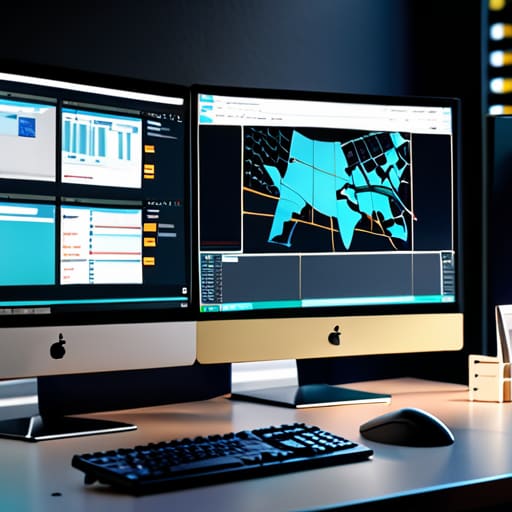
If you’re still running updates directly on a live production site, we need to have a serious talk. I’ve spent too many late nights staring at a broken header because I thought a minor patch wouldn’t touch my custom styles. The only way I sleep at night is by using staging environments for client websites. It’s not an extra step; it’s the bare minimum. You clone the site, run the update in that sandbox, and see if the layout collapses before your client calls you screaming that their homepage looks like a 1998 Geocities nightmare.
While you’re in that staging area, pay close attention to your styling. I’ve inherited more than a few “Frankenstein” sites where a theme update completely wiped out the custom CSS someone painstakingly added to fix a layout quirk. Part of preventing site breakage during updates is ensuring your specific design tweaks aren’t tethered to a file that’s about to be overwritten. If you aren’t using a child theme or a proper CSS injector, you’re basically playing Russian roulette with your client’s brand identity. Check the styles, verify the functionality, and only then—only then—do you push it live.
Five ways to stop treating updates like a game of Russian Roulette
- Stop using the “Update All” button like it’s a magic wand. I don’t care how many notifications are sitting in your dashboard; clicking that button on a live client site is how you end up spending your Saturday fixing a broken header.
- Staging isn’t a luxury, it’s the bare minimum. If you aren’t testing the theme update in a sandbox environment first, you aren’t managing a site—you’re just hoping for the best, and hope is not a technical strategy.
- Audit the changelog for more than just “bug fixes.” I look for mentions of CSS changes or structural shifts in the template files. If they’ve re-engineered how the header works, your custom tweaks are about to get nuked.
- Keep a “before” snapshot of the site’s critical paths. I always check the contact form, the checkout flow, and the main navigation immediately after an update. If the theme update broke the plugin compatibility, you need to know before the client calls you.
- Document the “why” behind your version control. When a client asks why you didn’t update a theme six months ago, don’t just say “I forgot.” Tell them you were waiting for a stable release that didn’t conflict with their specific page builder setup.
Stop Being a Passenger to Your Updates

Look, managing client sites isn’t about being a button-pusher; it’s about being a gatekeeper. We’ve covered why you can’t just blindly trust a changelog and why you need a staging environment that actually mirrors reality. If you aren’t auditing the developer’s logic and testing the fallout in a safe space, you aren’t “maintaining” a site—you’re just gambling with your client’s uptime. Remember: the goal isn’t to get the update done as fast as possible; it’s to ensure the decisions made by the theme developers don’t override the decisions you made when you built the site in the first place.
At the end of the day, your value as a developer isn’t in knowing where the “Update” button is located. It’s in the foresight to see the breakage before it hits the live URL. Every time you take the time to read the documentation and verify the CSS hasn’t gone sideways, you are reinforcing your reputation. Stop treating updates like a chore and start treating them like the critical architectural shifts they actually are. Build a workflow that respects the code, and you’ll stop spending your weekends fixing what should have been caught on a Tuesday afternoon.